 Abotts Partners with singapore based tech giant to help migrate their public sector customer from Sybase to SQL server.
 Abotts partners with NYPL to integrate with their partner libraries.
 Upworks Inc partners with ABOTTS to build their Oracle Cloud Infrastructure (OCI) and migrate their custom applications to OCI.
 Abotts Inc Partners with Gnorth consulting to deploy exadata and ODA for a large public sector customer.
What is the WordPress Media Library?
The Media Library is where all your uploaded files are stored, such as:
- Images
- Videos
- Audio files
- PDFs & documents
You can upload, organize, edit, and reuse these files in posts and pages.
How to Access the Media Library
- Log in to your WordPress Admin Dashboard
- In the left menu, click Media → Library
You’ll now see all uploaded files.
How to Upload Files
Method 1: Upload from Media Library
- Go to Media → Add New
- Click Select Files
- Choose files from your computer
- Click Open
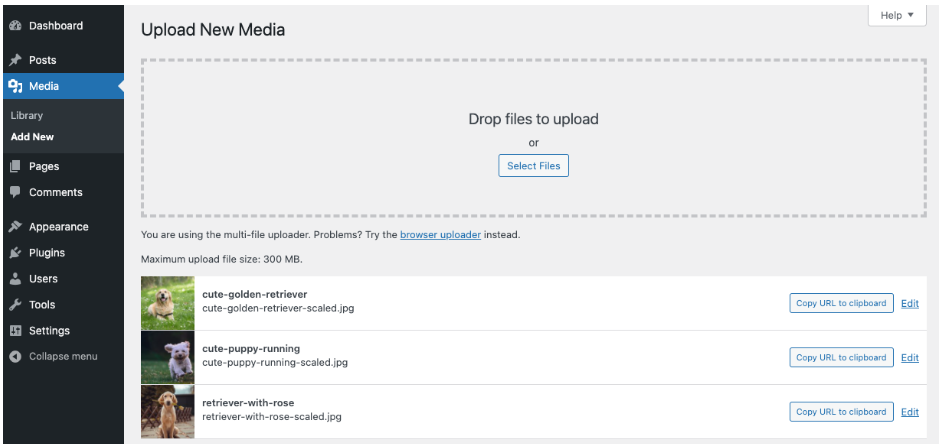
Files upload instantly and appear in your library.
Method 2: Upload While Editing a Post/Page
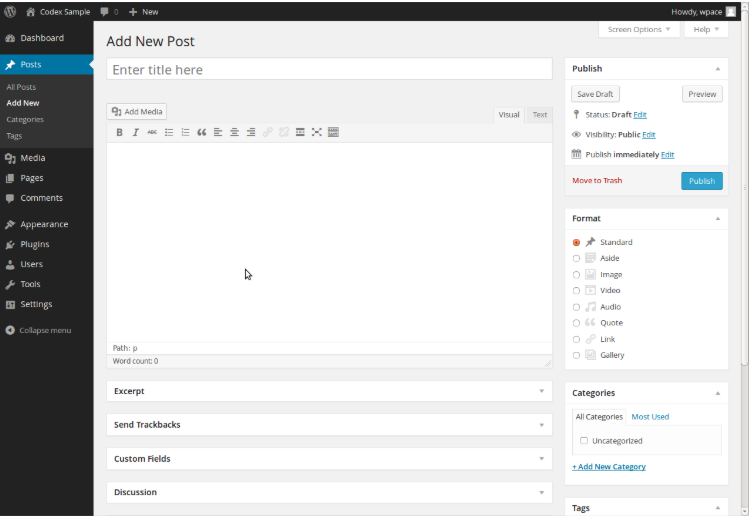
- Open or create a Post or Page
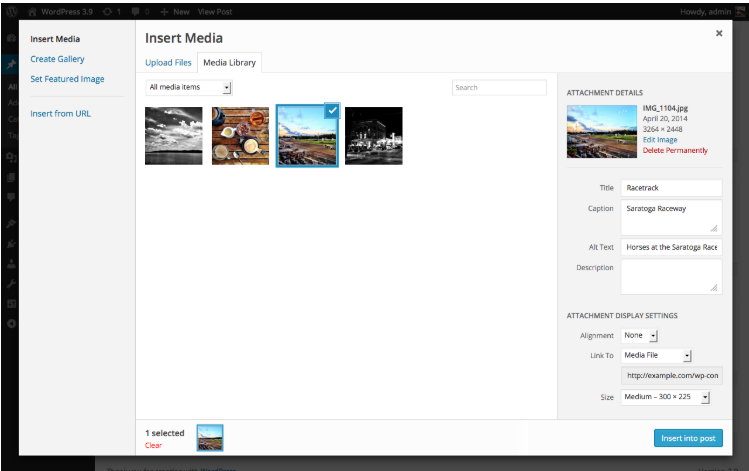
- Click Add Media
- Select Upload Files
- Upload your file
- Click Insert into post