

 Abotts Partners with singapore based tech giant to help migrate their public sector customer from Sybase to SQL server.
 Abotts partners with NYPL to integrate with their partner libraries.
 Upworks Inc partners with ABOTTS to build their Oracle Cloud Infrastructure (OCI) and migrate their custom applications to OCI.
 Abotts Inc Partners with Gnorth consulting to deploy exadata and ODA for a large public sector customer.
Creating Custom Template in WordPress
Custom page templates in WordPress allow you to design unique layouts for specific pages on your website. This guide explains the complete process of creating and applying a custom template in WordPress.
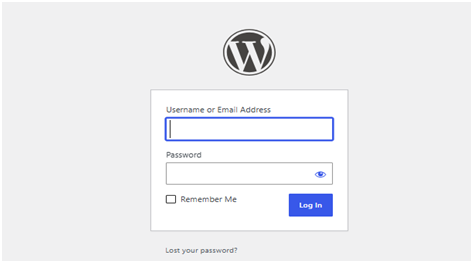
Step 1: Login to WordPress Dashboard
- Open your web browser.
- Navigate to your WordPress admin panel: localhost/wordpress/wp-admin
- Enter your username and password.
- Click the Log In button.
Step 2: Install a WordPress theme
- On the left sidebar, hover over Appearance
- Click on Themes
- Click the Add New button at the top
- Browse or search for any theme you like
- Click Install button on the theme you choose
- After installation completes, click Activate button
Step 3: Access the WordPress Theme Files
- Open your website files using:
– File Manager, or
– An FTP application such as FileZilla. - Navigate to the WordPress installation directory.
Step 4: Go to wp-content → themes → your-active-theme
- Open the wp-content folder
- Open the themes folder
- Open your active theme folder
- You are now at: wp-content → themes → your-active-theme
- You will see files like header.php, footer.php, functions.php, style.css
Step 5: Create a new PHP template file
- Right-click anywhere inside your theme folder
- Click New File
- Name the file: custom-template.php
- Important: Make sure the file extension is .php not .txt
- Press Enter to save
Step 6: Open the PHP file in a text editor
- Right-click on custom-template.php
- Click Open with
- Select VS Code
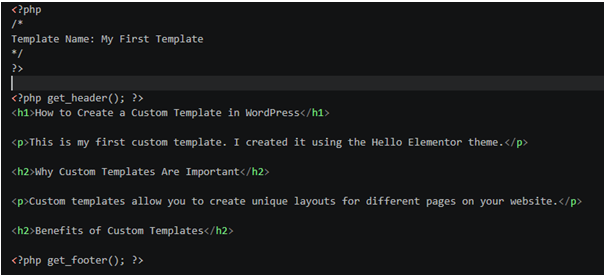
Step 7: Add template header (first line of code)
- In the empty file, type this exact code:
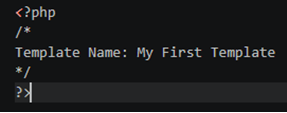
- Press Enter twice after typing
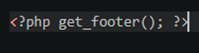
Step 8: Add header and footer functions
- Below your existing code, type this:
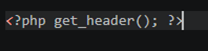
- Press Enter twice
- Then type this:
Step 9: Add page title and content
- Between <?php get_header(); ?> and <?php get_footer(); ?>, type this:
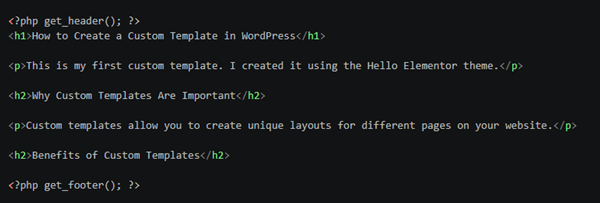
- Your complete file should now look like this:
Step 10: Save the PHP file
- Click File in the top menu
- Click Save (or press Ctrl+S)
- Close the text editor
Step 11: Create a new page in WordPress
- Go back to your WordPress Dashboard in the browser
- On the left sidebar, click Pages
- Click Add New button at the top
- In the title box, type: My Custom Template Guide
Step 12: Assign your custom template to the page
- Look at the right sidebar
- Find the Page Attributes section
- Click the Template dropdown menu
- From the list, select My First Template (the name you gave in Step 7)
Step 13: Publish and view the page
- Click the Publish button
- After publishing, click the View Page link
- Your browser will open the page showing your custom template with:
– Your website’s header
– The main heading “How to Create a Custom Template in WordPress”
– Paragraph text
– Section headings and bullet points
– Your website’s footer
- Now you can add HTML and CSS to design the template however you want.
- Also, if you want to use a custom header and footer for a specific template, remove get_header() and get_footer() and add your own header and footer instead.